
What you'll build
IMAP and SMTP for you@yourdomain.com on Stalwart, with DNS that Gmail will accept and an admin UI that does not fight your existing HTTPS site.
- Time
- ~60 min hands-on
- Level
- Intermediate
- Tested on
- stalwartlabs/stalwart:v0.16 · Docker Compose v2 · Linux VPS with UFW · DNS at a typical registrar
Before you start
- A Linux VPS with Docker Compose v2 and a public IPv4 (outbound TCP 25 must be allowed by the provider)
- A domain you can set A, MX, TXT, and — at the VPS panel — PTR on
- An existing HTTPS site on 80/443 is fine; we will not steal those ports
On this page
Why bother
Want you@yourdomain.com without paying Google Workspace or Fastmail, and without running a four-gigabyte Mailcow stack? Stalwart is a single Rust binary: IMAP, SMTP, JMAP, a real admin UI, and about 100–200 MB idle. Community edition (AGPL) is enough for a personal or product domain.
You need three things the SaaS plans hide from you:
- A VPS whose provider allows outbound port 25. Many cheap clouds block it. Check before you start.
- DNS you can edit: A, MX, SPF, DKIM, DMARC, and a PTR (reverse DNS) at the VPS panel, not at the registrar.
- About an hour. Most of it is DNS and TLS, not Docker.
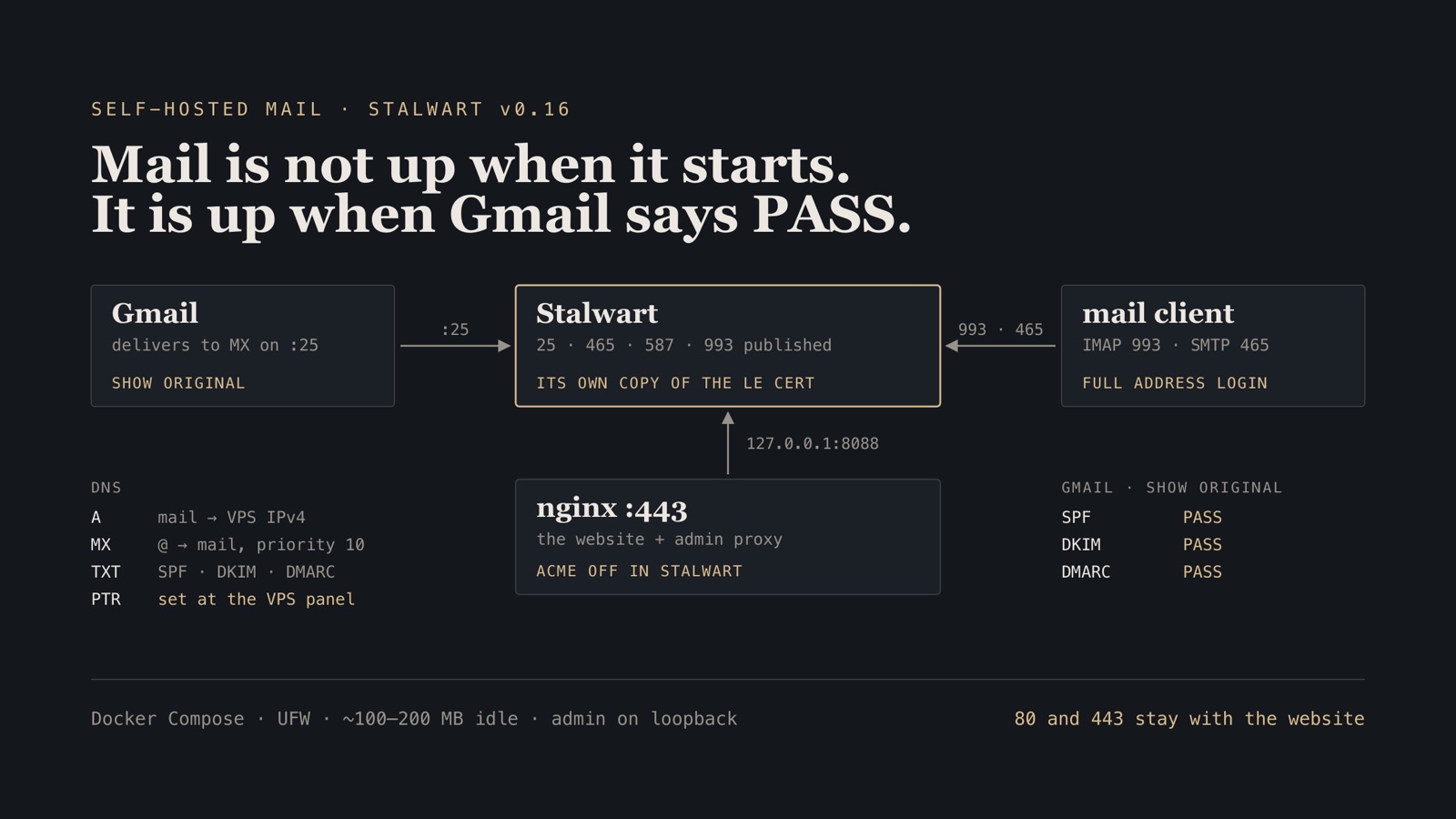
If the same VPS already serves a website on 80/443, that is normal. Do not let Stalwart’s ACME grab 443. The wizard has a switch for this. Turn it off. Admin HTTPS goes through the nginx (or Caddy) you already run; IMAP and SMTP get a copy of the same Let’s Encrypt cert.
Replace example.com / mail.example.com with your domain below. Do not commit mailbox passwords.
What “done” means. Not the admin UI loading. Done is: you can receive a message from Gmail in IMAP, reply, and Gmail → Show original shows SPF, DKIM, and DMARC passing. First deliveries may land in spam. That is reputation, not a broken server.
Step 1 — DNS and firewall first
Point the mail hostname at the VPS and publish the records that do not depend on the wizard yet. DKIM comes later, from Stalwart’s zone file.
| Type | Name | Value |
|---|---|---|
| A | mail |
your VPS public IPv4 |
| MX | @ |
mail.example.com priority 10 |
| TXT | @ |
v=spf1 mx a:mail.example.com ~all |
| TXT | _dmarc |
v=DMARC1; p=none; rua=mailto:admin@example.com |
Start DMARC at p=none. Tighten to p=quarantine after a few clean weeks.
At the VPS provider (not the DNS host), set reverse DNS / PTR for the public IP to mail.example.com. Large receivers still weigh PTR.
dig +short mail.example.com A
dig +short example.com MX
dig -x YOUR_VPS_IP +short
# expect: mail.example.com.
Open the mail ports. Keep the admin port on loopback.
sudo ufw allow 25/tcp
sudo ufw allow 465/tcp
sudo ufw allow 587/tcp
sudo ufw allow 993/tcp
sudo ufw reload
Verify. dig returns your A and MX. PTR is mail.example.com. If PTR still shows a generic srv….hstgr.cloud (or equivalent), fix that before you chase DKIM failures.
Step 2 — Start Stalwart and finish the wizard
This compose file is standalone. Admin listens on 127.0.0.1:8088 only. It does not bind 80 or 443, and it publishes only the mail ports opened above: Docker-published ports bypass UFW, so anything listed under ports: is public.
mkdir -p stalwart-mail/docker-data/{etc,data}
cd stalwart-mail
cat > .env <<'EOF'
MAIL_HOSTNAME=mail.example.com
MAIL_DOMAIN=example.com
STALWART_IMAGE_TAG=v0.16
STALWART_ADMIN_PORT=8088
TZ=UTC
EOF
services:
  stalwart:
    image: stalwartlabs/stalwart:${STALWART_IMAGE_TAG:-v0.16}
    container_name: stalwart
    hostname: ${MAIL_HOSTNAME:-mail.example.com}
    restart: unless-stopped
    environment:
      - TZ=${TZ:-UTC}
      - STALWART_RECOVERY_ADMIN=${STALWART_RECOVERY_ADMIN:-}
    ports:
      - "25:25"
      - "465:465"
      - "587:587"
      - "993:993"
      - "127.0.0.1:${STALWART_ADMIN_PORT:-8088}:8080"
    volumes:
      - ./docker-data/etc:/etc/stalwart
      - ./docker-data/data:/var/lib/stalwart
    mem_limit: 1g
    cpus: "1.0"
docker compose up -d
docker compose logs stalwart --tail=80
On first boot the log prints a bootstrap admin. It exists only until the wizard finishes. Open an SSH tunnel if you are not on the VPS:
ssh -L 8088:127.0.0.1:8088 user@your-vps
# then browse http://127.0.0.1:8088/admin
Wizard choices that matter:
- Hostname
mail.example.com, domainexample.com. - Automatically obtain TLS certificate: OFF if anything else already owns host
:443. - Generate DKIM keys: ON.
- RocksDB defaults, logging to console, DNS = manual.
- Save the permanent admin password from the last screen. The bootstrap password dies after this.
docker compose restart stalwart.
Under Management › Directory › Accounts create at least:
you@example.com— the inbox you will usenoreply@example.com— if an app will send mail
Two TLS places. nginx (or Caddy) can terminate https://mail.example.com for the admin UI. Phones and Thunderbird talking to 993/465 talk to Stalwart directly. If you only cert the proxy, Android and Gmail’s IMAP setup see a self-signed listener. Add the same Let’s Encrypt fullchain + key as a certificate under Settings › TLS › Certificates, and select it as the default certificate.
If you already have nginx on the host, add a vhost that proxies to the container on the Docker network (join Stalwart to that network, or proxy to 127.0.0.1:8088 from the host). Issue mail.example.com with the same certbot you use for the site. Then copy fullchain.pem / privkey.pem into Stalwart after every renew.
Verify. docker compose ps shows stalwart running, ss -lnt lists 25/465/587/993, and http://127.0.0.1:8088/admin accepts the permanent admin login.
Step 3 — Publish DKIM and send a real message
In the admin UI: Management → Domains → example.com → ⋮ → View DNS zone file. Paste the DKIM TXT records (and any SPF/DMARC extras it suggests) at your registrar. Selectors are often named like v1-ed25519-YYYYMMDD and v1-rsa-YYYYMMDD. Copy them exactly.
Optional but useful:
| Type | Name | Value |
|---|---|---|
| SRV | _imaps._tcp |
0 1 993 mail.example.com. |
| SRV | _submissions._tcp |
0 1 465 mail.example.com. |
| CNAME | autoconfig |
mail.example.com. |
| CNAME | autodiscover |
mail.example.com. |
Wait for TTL, then point a real client at the box. Thunderbird, Apple Mail, and FairEmail behave. The Gmail Android app often authenticates on SMTP and never sends MAIL FROM, so mail sits in Outbox — prefer FairEmail on Android.
| Setting | Value |
|---|---|
| IMAP | mail.example.com port 993 SSL/TLS |
| SMTP | mail.example.com port 465 SSL/TLS (or 587 STARTTLS) |
| Username | the full address, you@example.com |
| Password | the mailbox password, not the admin password |
| Port 25 | do not use this on a phone; it is MX only |
Send from Gmail to you@example.com and confirm it arrives. Reply. In Gmail, open the reply → three dots → Show original. You want SPF: PASS, DKIM: PASS, DMARC: PASS.
For an app:
SMTP_HOST=mail.example.com
SMTP_PORT=465
SMTP_USER=noreply@example.com
SMTP_PASSWORD=the-mailbox-password
Verify. A message you sent from you@example.com arrives at a Gmail address, and Show original reports SPF, DKIM, and DMARC all PASS. Inbox versus spam is a reputation question; PASS on the auth trio is the server question.
Failure modes
| Symptom | Cause | Repair |
|---|---|---|
| No certificate issued, ACME errors in the log | ACME left on; :443 belongs to nginx |
Remove the ACME provider (Settings › TLS › ACME Providers) and upload the existing LE cert |
| IMAP/SMTP clients warn about the cert | Cert only on nginx, not in Stalwart | Upload the LE chain as a Stalwart Certificate object |
| Nothing inbound | Provider blocks 25, or MX/A wrong | nc -vz mail.example.com 25 from outside; fix SG / MX |
| Outbound stuck / greylisted | No PTR, or SPF does not name this host | Set PTR to mail.example.com; dig -x must match |
| DKIM fail | Zone file not published, or wrong selector | Re-copy the TXT from the domain’s DNS zone view |
| Gmail app Outbox never sends | Gmail IMAP SMTP quirk | Use FairEmail or Thunderbird; 465 + full username |
| Bootstrap password gone | Wizard already completed | Use the permanent admin from the last wizard screen |
Clean up and operating consequence
Back up both bind mounts. They are the mailboxes and the config.
tar czf stalwart-backup-$(date +%F).tgz -C stalwart-mail docker-data
Pin v0.16 (or a newer minor after reading the upgrade notes). After certbot renews mail.example.com, copy the new fullchain and key into Stalwart again. Move DMARC from p=none to p=quarantine once Show original has been clean for a while.
To leave: docker compose down, revert MX to your previous host, and keep the tarball if you might restore.
You now have three free OSS services that usually cost a subscription: remote desktop, VPN, and mail for your own domain. They fit on one small VPS if you keep 80/443 for the website, 51821 and 8088 off the public internet, and treat DNS plus one backup of keys/mail data as the real state.