
What you'll build
A free WireGuard VPN on your VPS: scan a QR on your phone, and your public IP becomes the server IP.
- Time
- ~25 min hands-on
- Level
- Intermediate
- Tested on
- ghcr.io/wg-easy/wg-easy:15 · Docker Compose v2 · Linux VPS with UFW and in-kernel WireGuard
Before you start
- A Linux VPS (kernel 5.6+) with Docker Compose v2 and a public IPv4 address
- A DNS A record such as vpn.example.com pointing at that VPS
- The official WireGuard client on the device you will connect from
On this page
Why bother
Want a VPN without paying Mullvad, Tailscale, or a random “free VPN” app that sells your traffic? WireGuard is the modern OSS default: small, fast, audited crypto. wg-easy puts a web UI on top so you add a phone by scanning a QR instead of editing [Peer] blocks.
A $5 VPS is enough. Idle RAM is about 50 MB. You will spend more time on DNS and the firewall than on WireGuard itself.
One trap, stated early so you do not copy the wrong blog post:
image: ghcr.io/wg-easy/wg-easy:latest
environment:
  - WG_HOST=vpn.example.com
  - PASSWORD_HASH=...
  - WG_ALLOWED_IPS=0.0.0.0/0
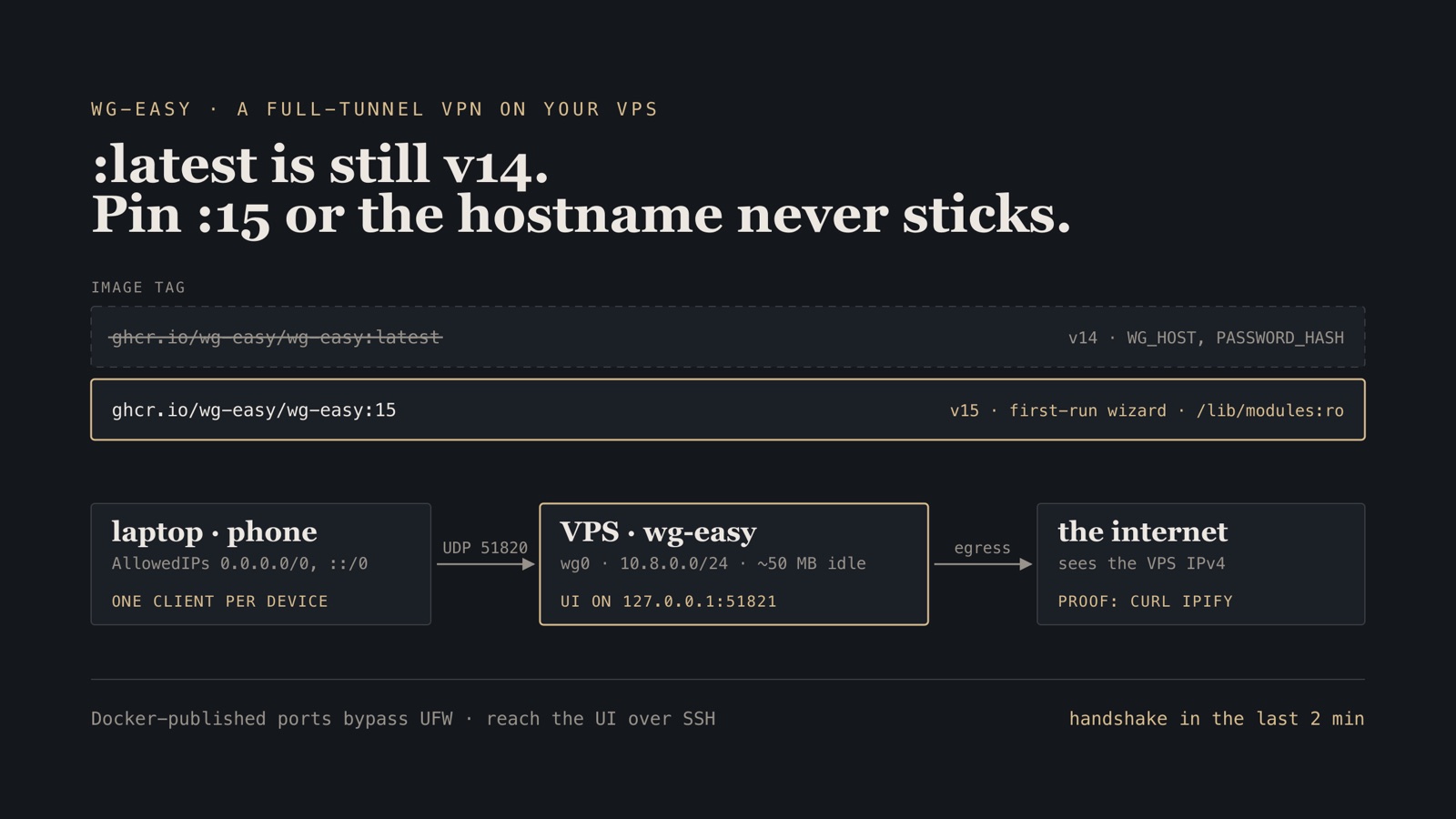
:latest still points at v14. v15 (May 2025) dropped those env vars. Config now lives in a first-run wizard (or INIT_* for unattended setup). Only a few optional runtime env vars remain (PORT, HOST, INSECURE, DISABLE_IPV6, …). Follow a v14 file on v15 and the hostname never sticks. Follow a v15 file on :latest and the wizard never appears. Pin :15.
This setup is a full-tunnel exit node: your laptop and phone leave the internet from the VPS IP. Great on café Wi-Fi. It also means the VPS acceptable-use policy now applies to your browsing. Split tunnel is one Allowed-IPs change if you do not want that.
Step 1 — DNS, forwarding, and the v15 compose file
Point vpn.example.com at the VPS. Open UDP 51820 for the tunnel. Keep TCP 51821 off the internet: Docker-published ports bypass UFW, so the compose file binds the UI to 127.0.0.1 and you reach it over SSH. Do not put this UI on 80 or 443 if those already serve a website.
sudo ufw allow 51820/udp
sudo ufw reload

sudo sysctl -w net.ipv4.ip_forward=1
echo 'net.ipv4.ip_forward=1' | sudo tee /etc/sysctl.d/99-wireguard.conf
sudo sysctl --system
mkdir -p wireguard-vpn/config
cd wireguard-vpn
services:
  wg-easy:
    image: ghcr.io/wg-easy/wg-easy:15
    container_name: wg-easy
    restart: unless-stopped
    environment:
      - INSECURE=true
      - PORT=51821
      - HOST=0.0.0.0
    volumes:
      - ./config:/etc/wireguard
      - /lib/modules:/lib/modules:ro
    ports:
      - "51820:51820/udp"
      - "127.0.0.1:51821:51821/tcp"
    cap_add:
      - NET_ADMIN
      - SYS_MODULE
    sysctls:
      - net.ipv4.ip_forward=1
      - net.ipv4.conf.all.src_valid_mark=1
      - net.ipv6.conf.all.disable_ipv6=0
      - net.ipv6.conf.all.forwarding=1
    mem_limit: 256m
    cpus: "0.50"
Three lines are load-bearing.
image: ...:15. Not :latest. Confirm after pull:
docker compose pull
docker compose config | grep image
# image: ghcr.io/wg-easy/wg-easy:15
/lib/modules:/lib/modules:ro. Required in v15 so the container can load the WireGuard kernel module. Omit it and the interface never comes up in a way that looks like a permissions problem.
INSECURE=true plus port 51821. That combination is HTTP on a high port, which is acceptable only because the port is published on 127.0.0.1 and reached through an SSH tunnel. A UFW rule would not have protected it: Docker-published ports bypass UFW. For TLS later, add a vpn.example.com vhost to the existing reverse proxy and set INSECURE=false. Do not start a second process on 80/443.
docker compose up -d
docker compose logs --tail=40 wg-easy
docker compose exec wg-easy wg show
Verify. docker compose ps shows wg-easy up and wg show lists wg0 listening on 51820. Do not trust nc -u for UDP: it reports success even when packets are dropped. UDP is proven only by the handshake check in Step 3.
Step 2 — Wizard: full tunnel is Allowed IPs, not a compose flag
Open a tunnel with ssh -L 51821:127.0.0.1:51821 user@your-vps, then browse to http://127.0.0.1:51821. Complete the wizard:
| Setting | Value |
|---|---|
| Admin username | yours |
| Admin password | 16+ characters from a password manager |
| Existing setup | No |
| Host / Endpoint | vpn.example.com |
| Port | 51820 |
DNS and Allowed IPs are not wizard fields. They live under Admin Panel → Config: the default DNS is 1.1.1.1, and the default Allowed IPs, 0.0.0.0/0, ::/0, is already the full tunnel. For split tunnel use only the VPN subnet, usually 10.8.0.0/24. Enable TOTP on the admin account before you add clients.
Then New client → name the device → download the .conf or show the QR. One client per device. Reusing a single config on a laptop and a phone will fight over the same internal IP.
Unattended alternative, if you refuse the wizard: add an INIT_* block to environment: (INIT_ENABLED, INIT_USERNAME, INIT_PASSWORD, INIT_HOST, INIT_PORT, INIT_DNS, INIT_ALLOWED_IPS). That is the only remaining place those values belong. They are not WG_* anymore.
Do not copy a password into git. If you use INIT_PASSWORD, keep it in a gitignored .env. The compose file above uses the wizard so the repo never holds a credential.
Verify. The UI lists the new client, and the downloaded config contains Endpoint = vpn.example.com:51820 plus AllowedIPs = 0.0.0.0/0, ::/0.
Step 3 — Import the client and prove egress
Before connecting:
curl -s https://api.ipify.org && echo
# your ISP address
Import the tunnel:
- macOS: WireGuard from the App Store → import the
.conf→ enable “Activate on system startup” if you want it after reboot. - Linux:
sudo cp client.conf /etc/wireguard/wg0.conf && sudo systemctl enable --now wg-quick@wg0 - Windows: official client → import → “Enable on boot”.
- iOS / Android: scan the QR, then turn on Always-on / On-Demand.
After connecting:
curl -s https://api.ipify.org && echo
# must now be the VPS public IPv4
nslookup example.com
If the second curl still shows the ISP address, you are on split tunnel or the client did not activate. If DNS fails while the IP changed, the DNS field under Admin Panel → Config is wrong.
docker compose exec wg-easy wg show
You should see a recent handshake and transfer counters moving.
Verify. curl https://api.ipify.org after connect returns the VPS IP, DNS still resolves, and wg show on the server shows a handshake in the last two minutes.
Failure modes
| Symptom | Cause | Repair |
|---|---|---|
| No wizard, old password env | Image is v14 (:latest) |
Pin :15, recreate the container |
Wizard present, WG_HOST ignored |
You are on v15 with a v14 file | Delete the old env; set hostname in the wizard |
wg show empty / module errors |
Missing /lib/modules mount |
Add the read-only mount; confirm kernel WireGuard |
| UDP 51820 closed from outside | Provider security group (UFW does not filter Docker ports) | Allow UDP 51820 in the cloud firewall |
| UI open to the world | 51821 published on 0.0.0.0 (Docker bypasses UFW) |
Publish 127.0.0.1:51821, use the SSH tunnel; enable TOTP |
| IP does not change | Allowed IPs is the VPN subnet only | Set 0.0.0.0/0, ::/0 and re-download the client |
| Banks / streaming break | Full-tunnel egress looks like a VPS | Split-tunnel those destinations, or accept the trade |
| Every device dies after a wipe | ./config was deleted |
Restore ./config (it holds wg-easy.db) from backup |
Clean up and operating consequence
State lives in ./config. Losing it means re-issuing every peer.
tar czf wg-backup-$(date +%F).tgz -C wireguard-vpn/config .
docker compose pull   # still pinned to :15
docker compose up -d
To leave: docker compose down, delete the tunnel on each device. Wiping server state is rm -rf wireguard-vpn/config.
If curl shows the VPS IP, you have a free VPN you control. Add a phone, a tablet, a second laptop — one client each in the UI, same server.
Previous: a free remote desktop with RustDesk. Next: a free mailbox for your domain with Stalwart.