What you'll build
Your own RustDesk server on a VPS, so two machines can connect without the public servers' sign-in or the 30-second drops seen there.
- Time
- ~30 min hands-on
- Level
- Intermediate
- Tested on
- rustdesk/rustdesk-server · Docker Compose v2 · Debian/Ubuntu VPS with UFW
Before you start
- A Linux VPS with a public IPv4 address and Docker Compose v2
- A DNS A record you can point at that VPS, for example relay.example.com
- Two machines with the RustDesk client (laptop plus the machine you want to control)
On this page
Why bother
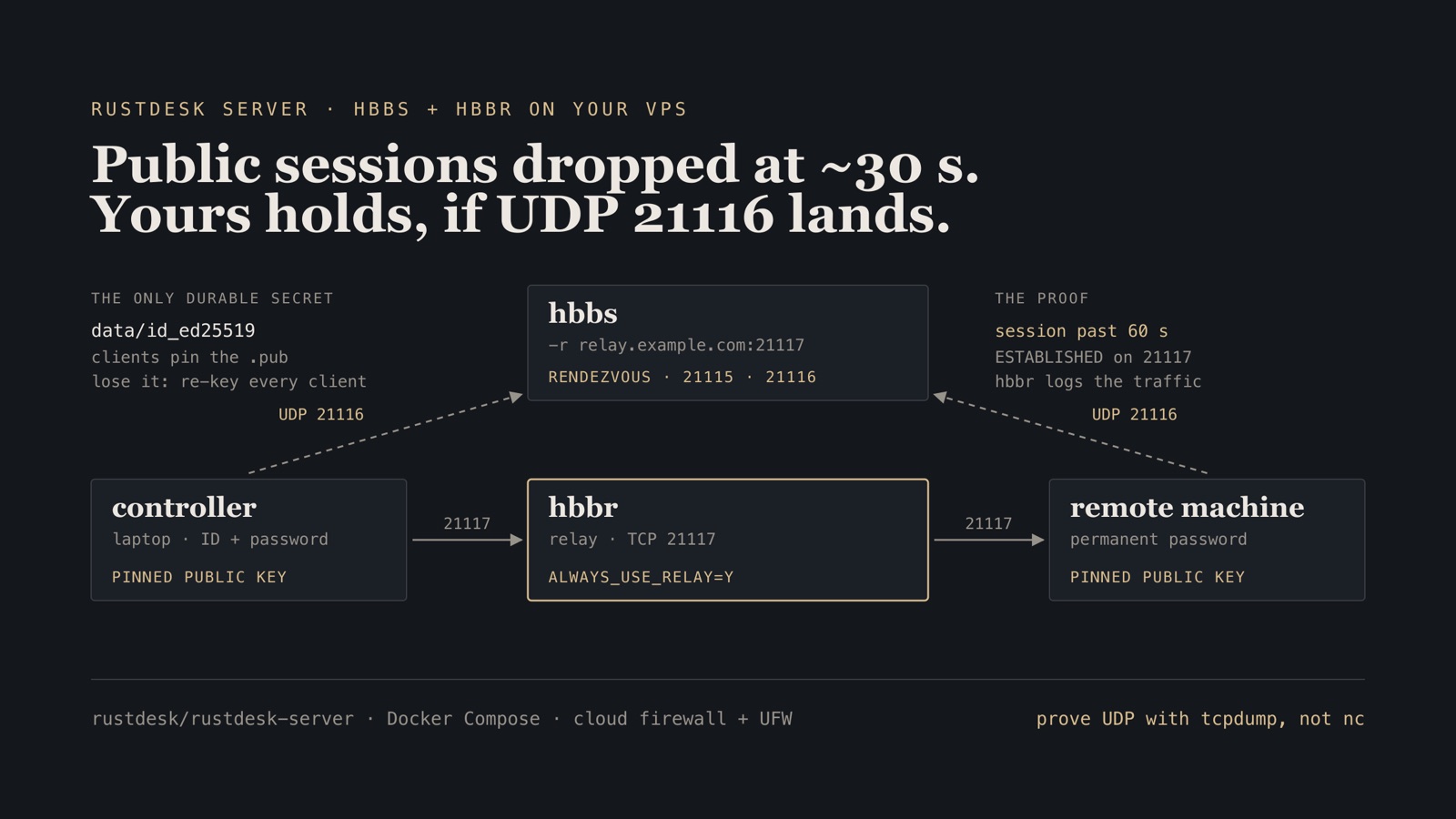
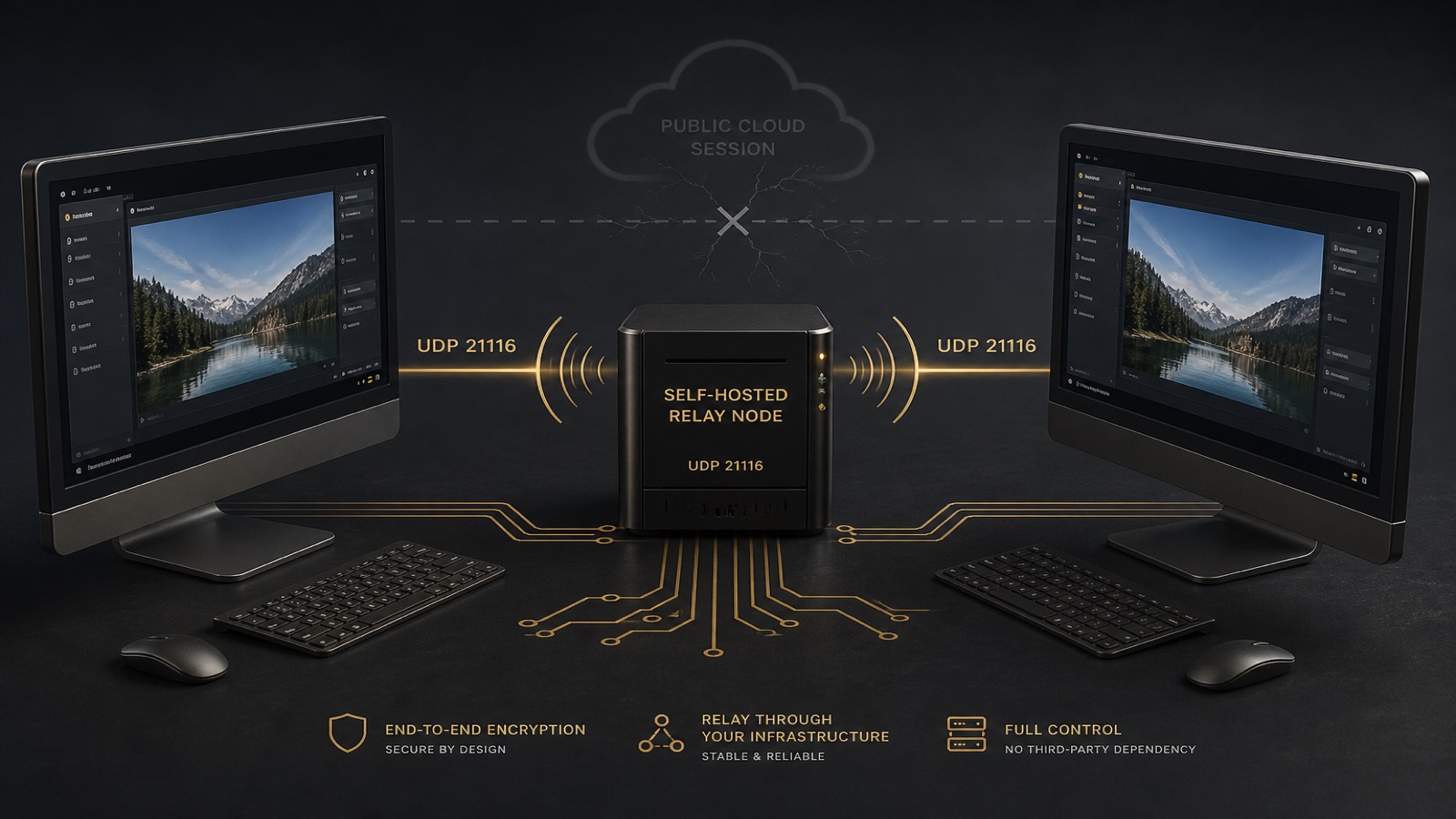
Want a TeamViewer-style remote desktop without a subscription, and without handing connection metadata to someone else’s relay? RustDesk is fully open source. The clients are free. The public servers will connect you, but they are a demo service: the controlling side must now sign in, and sessions through them have been dropping at about thirty seconds.
You can skip that tax. Run the official hbbs (rendezvous) and hbbr (relay) containers on any small Linux VPS, point relay.example.com at it, and paste one public key into each client. Idle cost is tens of megabytes of RAM. Bandwidth is whatever your VPS already has.
Two things usually waste the first hour, so we will treat them as part of the setup rather than surprises:
- UDP 21116. People open TCP 21116 and forget UDP. The app sits on “Connecting…” while Docker looks healthy.
- Silent P2P. RustDesk prefers a direct path. On the same LAN a session can succeed without ever touching
hbbr. You have not tested the relay untilALWAYS_USE_RELAY=Yand you see traffic on 21117.
Substitute your domain below. Do not publish the private key.
What “done” means. Not docker compose ps saying healthy. Done is: UDP 21116 arrives from outside, the client shows Ready (relay.example.com), and a session through your relay lasts past sixty seconds.
Step 1 — DNS, firewall, and the compose file
Create a directory and an A record for the relay hostname, pointing at the VPS. IPv6 is optional; if you add AAAA, keep using the hostname as the client setting so you are not locked to one stack.
mkdir -p rustdesk-server/data
cd rustdesk-server
Open the ports. UDP 21116 is the one people skip. 21118/21119 are only for the web client; leave them closed if you are not using it.
sudo ufw allow 21115/tcp
sudo ufw allow 21116/tcp
sudo ufw allow 21116/udp
sudo ufw allow 21117/tcp
sudo ufw reload
sudo ss -lntu | grep -E '21115|21116|21117' || true
Write .env and the compose file. RUSTDESK_PUBLIC_HOST must be the name you put in DNS. hbbs -r tells clients which host:port is the relay.
cat > .env <<'EOF'
RUSTDESK_PUBLIC_HOST=relay.example.com
RUSTDESK_ALWAYS_USE_RELAY=Y
EOF
services:
  hbbs:
    image: rustdesk/rustdesk-server:latest
    container_name: rustdesk_hbbs
    restart: unless-stopped
    environment:
      - ALWAYS_USE_RELAY=${RUSTDESK_ALWAYS_USE_RELAY:-Y}
    command: hbbs -r ${RUSTDESK_PUBLIC_HOST}:21117
    ports:
      - "21115:21115"
      - "21116:21116"
      - "21116:21116/udp"
    volumes:
      - ./data:/root
    depends_on:
      - hbbr
    networks: [rustdesk_net]
    mem_limit: 256m
    cpus: "0.25"

  hbbr:
    image: rustdesk/rustdesk-server:latest
    container_name: rustdesk_hbbr
    restart: unless-stopped
    command: hbbr
    ports:
      - "21117:21117"
    volumes:
      - ./data:/root
    networks: [rustdesk_net]
    mem_limit: 256m
    cpus: "0.50"

networks:
  rustdesk_net:
    driver: bridge
Explicit port maps beat host networking here. The relay then sits beside an existing app stack without claiming the host network namespace. Idle cost is small: tens of megabytes of RAM and almost no CPU until a session is relayed.
docker compose up -d
docker compose ps
docker compose logs hbbs --tail=30
docker compose logs hbbr --tail=20
Look for ALWAYS_USE_RELAY=Y in the hbbs log and a listen line on 21117 in hbbr. Treat a healthcheck of unhealthy as untrusted if the image has no shell for CMD-SHELL. Ports listening plus an external nc are the real signals.
Verify. From a machine that is not the VPS, the three TCP checks should report open. nc -u cannot prove UDP, because it reports success even when packets are dropped, so prove UDP 21116 with a capture on the VPS instead. If TCP works and no UDP packet arrives, the provider security group is incomplete: Docker-published ports bypass UFW, so UFW is not what blocks them.
nc -vz relay.example.com 21115
nc -vz relay.example.com 21116
nc -vz relay.example.com 21117
# on the VPS
sudo tcpdump -ni any udp port 21116

# from outside, while the capture runs; one packet in tcpdump is the proof
echo x | nc -u -w1 relay.example.com 21116
Step 2 — Pin the key, then configure the clients
The first start writes an Ed25519 pair into ./data. Clients pin the public key. Without that pin they will not talk to your server, which is the whole anti-MITM design.
cat ./data/id_ed25519.pub
# example only: 5fGu2T8aQrXkPnMwZ...kP9vNw=
Treat ./data/id_ed25519 as a secret. Back it up off the VPS. If that file is lost, the next start mints a new key and every existing client refuses to connect until you paste the new public key.
On each RustDesk client:
- Install the app (
brew install --cask rustdeskon a Mac). - Settings → Network → unlock network settings.
- ID Server =
relay.example.com. - Relay Server = leave empty.
hbbs -radvertises the relay; the official docs say it can be left blank and RustDesk works it out. - API Server = leave empty (Pro).
- Key = the exact contents of
id_ed25519.pub, no quotes, no trailing space. - Apply, then restart the app.
The status line should read Ready (relay.example.com), not the public-server message.
Relay is server-side. ALWAYS_USE_RELAY=Y is an hbbs environment variable. Putting a relay hostname in the client does not force relay. Two clients on the same LAN may still take a direct path on some RustDesk builds; test across two networks if you need to prove hbbr.
On the machine you want to control unattended: Settings → Security → enable a permanent password (16+ random characters, password manager), optionally 2FA, and grant the OS permissions RustDesk asks for (Accessibility and Screen Recording on macOS). That first permission grant needs a local screen. It cannot be done over SSH.
Verify. The controlled client shows Ready (relay.example.com) and docker compose logs hbbs --tail=50 shows the client ID registering, with no permission denied or key errors.
Step 3 — Connect and prove you beat the public cutoff
From the controlling laptop, enter the nine-digit ID of the remote machine, use the permanent password, and wait for the desktop. Then do the only check that matters for this post: leave the session up for more than sixty seconds while moving the mouse.
While it is connected:
docker compose logs -f hbbr
sudo ss -tunap | grep 21117
With ALWAYS_USE_RELAY=Y you should see hbbr activity and established sockets on 21117. If the session is up and hbbr is silent, you are on P2P and have not tested the relay.
That is also why I default to relay-on. It costs server bandwidth. It makes the failure mode visible. Set RUSTDESK_ALWAYS_USE_RELAY=N later if you want hole-punched P2P and only fall back to hbbr.
Verify. The session is still connected at 60 seconds, hbbr logged traffic, and ss shows ESTABLISHED on 21117. That is the proof you are on your own relay, not the public one.
Failure modes
| Symptom | Cause | Repair |
|---|---|---|
| Client stays on the public server message | Key has spaces/quotes, or ID Server is wrong | Paste id_ed25519.pub exactly; restart the app |
TCP nc works, no UDP 21116 packet in tcpdump |
Cloud SG missing UDP (UFW does not filter Docker ports) | Add the matching UDP rule at the provider |
Session starts, hbbr stays quiet |
P2P / same LAN, or ALWAYS_USE_RELAY not Y |
Confirm the env in hbbs logs; test from a different network |
| Containers “unhealthy” but ports listen | Image healthcheck needs a shell the image may lack | Ignore the health label; trust ss and nc |
| Every client dies after a recreate | ./data/id_ed25519 was deleted |
Restore the backup, or distribute the new public key |
| IPv4 hangs after you add AAAA | Client tries A first and never falls back | Keep the hostname in the client; do not switch RUSTDESK_PUBLIC_HOST to a raw address unless you want one stack |
Clean up and operating consequence
Quarterly:
docker compose pull
docker compose up -d
Backup recipe — the keys are under a kilobyte:
tar czf rustdesk-keys-$(date +%F).tgz -C rustdesk-server data/id_ed25519 data/id_ed25519.pub
To walk away from the private server, docker compose down and clear ID Server / Key on each client. They return to the public infrastructure in about thirty seconds per device.
If you can keep a session up for a minute through hbbr, you have a free private remote desktop. Add more devices the same way: same hostname, same public key, no server change.
Next, the other thing people usually want on the same VPS: a free VPN with WireGuard.